Deal jackets
Open a searchable list of deals and filter by stage: Quote, Pending/Deposit, Funded/Sold, Delivered, or Cancelled. Buyer, units, and price flow into the jacket, along with the forms for the state of registration.
The platform
A department-by-department look at the work the system is built to handle — from the first quote to a refund, a printed check, or a published listing. This page is a written guide; most walkthrough videos are on the home page.
Where a connection to an outside service is not live yet, look for the Integration-ready label.
Sales & Deals
Build a quote, take a deposit, add trades and F&I, and move the jacket through funding and delivery — with the customer and unit staying on one record.
E-sign is shown separately; this walkthrough uses print for wet-ink signatures.
Deal jackets work for every state. This walkthrough uses a West Virginia boat deal as the example, with sample data only.
First, add the buyer. Morgan Sample lives in Summersville, West Virginia. Add the package to inventory: a Demo Craft Fish 18, plus the outboard and trailer as components. Open a new deal, choose that buyer and this package, and set payment type to Finance.
Fees and West Virginia sales tax are on the worksheet. This deal also includes a small trade-in. Save the quote, then open Deal jacket. Buyer, units, and price flow in from the deal.
State of registration defaults to West Virginia, from the buyer's address. You can change it to any state. I'll switch this one to Tennessee for a moment. If a state doesn't publish a form, Pinnacle ONE tells you why and where to get it, so you can upload your own or request it. Now we'll switch back to West Virginia for this deal.
West Virginia titles and registers the boat on a DMV-MB-6. The motor is listed on that application, not titled separately. The trailer gets West Virginia's DMV-1-TR. There is no odometer disclosure on a boat and trailer package.
Here is the lienholder: Sample Valley Bank, with its address. This will print on the title applications. A co-buyer can be added here. Each owner gets West Virginia's DMV-9-TR, and there is one power of attorney per titled unit.
The jacket starts with the buyer's order, then West Virginia's forms, the powers of attorney, and the We Owe. Other states get their own forms automatically. Print makes one fillable PDF, ready for wet-ink signatures. E-sign is coming, but it is not in this walkthrough.
Here is West Virginia's motorboat title application, with Sample Valley Bank as the lienholder. Pinnacle ONE gives you a head start on each state's paperwork, but every dealer should confirm what their state requires. You can upload your own forms, or ask us to add one.
Deal jackets work for any state. The state of registration defaults from the buyer's address and can be changed. States that don't publish a form show a note plus Request a form. Dealers should confirm their own state's requirements.
E-sign a jacket in person on a tablet, or send a remote link plus a 6-digit code. Each signing produces a certificate and an audit trail. State forms default to wet ink.
Open a searchable list of deals and filter by stage: Quote, Pending/Deposit, Funded/Sold, Delivered, or Cancelled. Buyer, units, and price flow into the jacket, along with the forms for the state of registration.
Sign in person on a tablet, or send a remote link plus a 6-digit code. Each signing produces a certificate and an audit trail. State forms default to wet ink.
Start a deal that ties a customer, a unit, a salesperson, and a deal date, then save it as a quote.
Set selling price, doc, title, and registration fees, and choose whether each fee is taxable.
Record a down payment by cash, check, ACH, or card, with optional last four digits and authorization.
Price and tax a hull, motor, trailer, or other component on the same deal, each with its own tax rule.
Add one or more trades, including component detail and a lender payoff.
Add accessories, add-ons, and non-inventory items to the jacket.
Add finance and insurance products and track back-end income on the deal.
Review tax by jurisdiction and rule, add extra tax or fee lines, and handle tax-exempt sales with approval.
Take a deposit on a quote, then print, refund, forfeit, or undo a forfeit of that deposit.
Record more than one partial refund against a deal or receipt.
Mark a deal funded or delivered, cancel it, or unfund it with the related inventory and accounting effects.
Apply additional receipts to the deal as the customer pays.
Print a deal recap and a Buyer’s Order from the jacket.
Fill an applicant and co-applicant credit application on the deal — residence, employment, and income — and export it with the jacket.
The application is ready to route to a credit network when that connection is turned on. AppOne is not connected in this build.
Choose a payoff method and reference when the sold unit is on floorplan.
Sell an on-order, held, or otherwise restricted unit after a manager override with a documented reason.
Read a timeline of stage and payment activity, and keep notes on the jacket.
A read-only calendar in day, week, and month views, filled from deals, repair orders, and deliveries.

Inventory
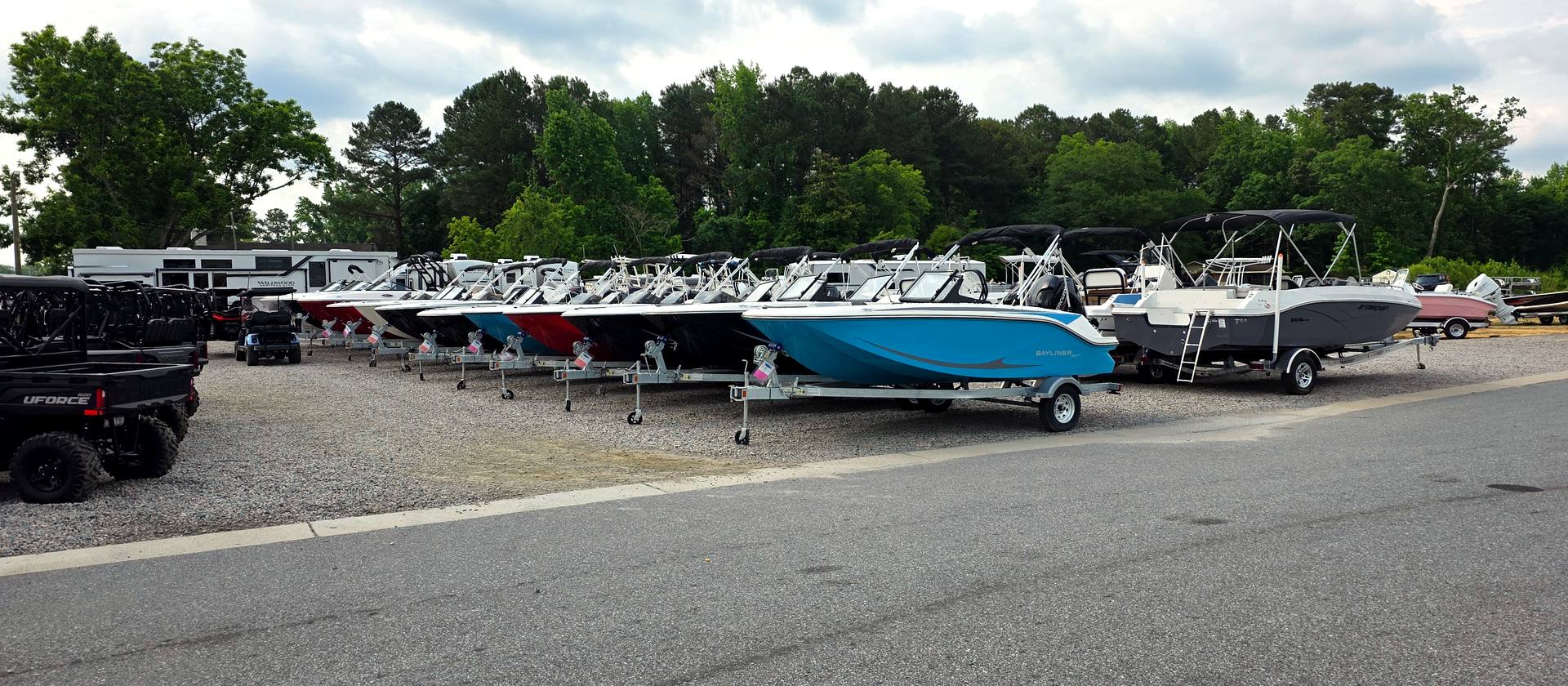
Keep boats, powersports, RVs, and other recreational units in one catalog. A marine package can hold the hull, motor, and trailer together on a single record.
Search by stock number, VIN or HIN, year, make, or model, and filter by status, type, or industry.
Track In Stock, On Order, Pending/Deposit, Sold, Delivered, or Wholesale — across ATVs, UTVs, motorcycles, boats, pontoons, PWCs, travel trailers, motorhomes, and more.
Add or edit a unit once and use it in sales, service, the website, and inventory feeds.
Clone a similar unit to start a new record, and preview how the listing will look.
Import and export units with the Pinnacle ONE CSV template, including a path to restore or remove selected units.
A fluid template format that learns each provider’s file layout, so repeat imports map themselves.
Enter year, make, model, condition, title status, color, meter (hours, miles, or kilometers), location, and received date.
Record MSRP, invoice, freight, prep, and asking price, mark a unit on sale, call-for-price, or make-offer, and show OEM promotions on new units.
Attach a hull, engine, trailer, and other components — each with serial or HIN, hours, cost, and price allocation.
Fill hull and engine details, beam, draft, deadrise, length, fuel and engine type, horsepower, hull material, trailer type, axles, and passenger capacity.
Show additional fields for Power Sports, RVs, and trailers when that industry is selected.
Upload a photo gallery, set a primary image, and reorder shots.
Choose, on each unit, whether the listing shows MSRP and whether it shows the VIN.
Control website and showroom visibility, including custom showrooms, and choose which channels a unit can list on.
Inventory automatically feeds BoatClassifieds.com and PowersportsClassifieds.com. An Inventory Feeds tab shows those listings and follows sold and delivered status, including a short window after a unit is sold.
Record the floorplan lender and start date on the inventory record.
Keep dealer notes that stay off public listings, alongside the public description and specs.
Listing videos are included at no extra cost. Attach up to three videos to a unit in Add unit or Edit unit, from the mobile staff app or the web editor. Upload an MP4 — recorded on the phone or picked from the gallery — or paste a link from YouTube, YouTube Shorts, TikTok, Instagram Reels, or Facebook Reels. A pasted link shows a preview before it is attached. There is no in-app video editing. Videos belong to your dealership and appear only on your own listings. You can reuse videos your team already posts on those platforms, or upload a file directly; listing videos do not post to social media. Each upload can be up to 512 MB and 3 minutes long. A private or embed-disabled social post cannot be shown.
A video block sits at the top of each unit’s detail page on your Pinnacle ONE hosted website. Shoppers see a poster image with a play button, and the player loads when they tap. Vertical, horizontal, and square videos show whole, with no cropping, on desktop and mobile.
Videos your team attaches in Pinnacle ONE are built to appear on your listings on BoatClassifieds.com and PowersportsClassifieds.com, embedded in the listing gallery.
Parts
Look up a part, write a counter ticket, flag a special order, and open a purchase order from the same catalog. Shipping labels and packing slips print from the same invoice or purchase order.
Maintain part number, description, vendor, brand, bin, cost, list price, and core charge.
Track on-hand and on-order quantities, set min/max points, and filter to low or out-of-stock parts.
Adjust on-hand quantity and undo a recent adjustment when needed.
Import and export the catalog with the Pinnacle ONE CSV template.
A fluid template format that learns each provider’s file layout, so repeat imports map themselves.
Write a parts invoice for a customer or a walk-in, including stocked parts and non-inventory lines.
Apply a discount, with an optional manager cap, and record, print, or void a price match.
Take a return, apply a restocking fee, and void a return if it was entered in error.
Flag a shortfall as a special order, and optionally add that line to a purchase order.
Create a PO, add lines, suggest from low stock, and receive in full or in part — or cancel it.
Complete, void, or print an invoice, receive payment, and refund a receipt when required.
Print on a chosen parts-invoice layout, and edit, duplicate, or archive those layouts.
Print 4×6 thermal, 3×5, 4×3, or part and bin labels, with your logo, ship-to, and a scannable barcode. No carrier account needed.
Print a packing slip on letter or 4×6, with bill-to, ship-to, a barcode, and the parts list.

Service
Write an estimate or repair order, schedule the bay, and move the ticket from authorization through invoice. Shop TV puts a live service board on a shop or showroom TV.
Search by RO number, customer, VIN, or unit, and filter by Estimate, Open, In Progress, Waiting on Parts, Completed, or Invoiced/Closed.
Open an RO for a customer unit or for internal work and deposit prep on a stock unit.
Build jobs with complaint, cause, and correction, then add technician labor, parts, sublets, and non-inventory lines.
Use shop internal or retail labor rates, apply shop supplies, and tax the order.
Require authorization before opening an estimate, then advance the RO through the shop to invoice and close.
Schedule appointments on a day or month calendar, check a customer in, and handle overlapping-slot warnings.
Add technicians, clock in and out, record time off, and configure bays and service types.
See shop capacity and the day’s arrivals at a glance.
Upload and reorder photos on a repair order.
Print a repair order, confirm tax-exempt work, or unpost internal prep cost when a correction is needed.
Shop TV is a live service board for any shop or showroom TV. Repair orders move across the board, a Tech Load view rotates in, and customers appear as initials or as the repair-order number only, so it is safe to leave on in the showroom. It works on any TV with a browser, a Fire Stick, or a Chromecast.

Accounting
Day-to-day money movement comes first — refunds, check writing, deposits, and receipts — then a full general ledger, payables and receivables, banking, payroll, and financial statements, in the same system as sales and service.
Watch the accounting walkthrough
Record that a refund was paid, including more than one partial refund against a deal or receipt, card refunds held in a dedicated liability, and void a payout if needed.
Write a check against a bank account, add distribution lines, print checks, run an alignment sheet, and confirm check numbers.
Void a check and print the check register for the account.
Export a positive-pay CSV for the bank, reserved for managers.
Build a deposit batch from undeposited funds, print the batch, or void it.
Receive cash, check, ACH, or card payments — cash, check, and ACH land in undeposited funds; cards land in undeposited card funds until they are deposited or reconciled.
See receivables, payables, bank balance, and aging at current, 31–60, 61–90, and 90+ days.
Maintain the dealership chart — including department and tax-jurisdiction flags — and add or inactivate accounts.
Post and reverse general journal entries, including a payroll posting or an opening-balance entry. Owners, admins, managers, accounting staff, and an outside accountant can post and reverse; sales, service, parts, and read-only roles cannot.
Dealers can edit the fee account map, numbering, and other accounting settings. Title and registration fees are kept out of top-line Total Sales; doc fees and F&I stay in Total Sales.
Work open invoices, apply customer payments, and review aging.
Enter vendor bills, pay bills, apply vendor credits, and void a bill.
Set a lock date so earlier periods are not casually rewritten.
Issue a credit memo to a customer. A journal preview is shown before posting, and a posted memo can be reversed.
Record a vendor credit. A journal preview is shown before posting, and a posted credit can be reversed.
Print balance-forward statements for customers and for vendors.
Adjust parts or unit inventory. A journal preview is shown before posting, and a posted adjustment can be reversed.
Transfer money between accounts, then match transactions and finish or reopen a bank reconciliation.
Bank Feeds is included at no extra cost. Import a bank CSV and reconcile in the app today.
Load a processor statement, record payouts and fees, post adjustments, and finish or print the reconciliation. A mapping wizard is available for the statement file.
Track floored units, record curtailments and payoffs, write floorplan checks, and finish a floorplan reconciliation.
Record or void title-fee remittances as those fees are sent.
Run the general ledger, trial balance, profit and loss, balance sheet, tax liability, tax-exempt sales, and floorplan aging, including period compare and department filters.
Payroll
Run payroll in the same system as deals and the shop — with time, commissions, and contractor payments close at hand. Pinnacle ONE prepares your payroll for filing.
Welcome to Pinnacle ONE Payroll. Today we will walk through employee records, advances, opting out of direct deposit, running a pay run, printing and voiding checks, voiding a pay run, remittances, and month-end estimates. We will use Sample Hourly Lane and Sample Salary Brooks in the demo tenant.
They are sample records only, never a real dealership's live payroll. Let's open Sample Hourly Lane to view the six-tab record, reached from the name, Open record, or Add employee. Required info stores name, job title, hire date, and Social Security number, showing only the last four digits.
The home address drives state and local taxes. Personal and Additional info hold citizenship, Form I-9, and emergency contacts. Next is Payroll info. Here you set the pay schedule, bonus and commission withholding, and review pay method. Pinnacle ONE prepares for direct deposit, and employees can opt out of direct deposit and receive a payroll check instead.
With no W-4 on file, withholding defaults to Single with no adjustments. Below that, assign pay types — regular hourly, overtime, double time, and commission — plus deductions like Section 125 health insurance, a 401(k) deferral, or loan and advance repayments. At the bottom of Payroll info is Employee advances and loans for Account thirteen hundred.
Enter the type, amount, date, and memo, then click Issue advance. Pinnacle ONE posts the entry and updates the outstanding balance right below. On Employment, every employee starts as non-exempt, eligible for overtime after forty hours per week, with Section 13(b)(10) never applied automatically.
For West Virginia or Ohio, enter I.T. 104 or I.T. 4 exemptions here. In the Employee pay portal, employees view paystubs and manage how they are paid. Under Method, an employee can switch from Direct deposit to Paper check to opt out of direct deposit and receive a payroll check instead.
Now let's open Pay runs, click Start a pay run, enter a weekly period in December twenty twenty-six, and choose Create draft. The draft lists active employees. Let's include only our two sample employees and uncheck everyone else. For Sample Hourly Lane, I will enter forty regular hours, five overtime hours at one and a half times, and two double-time hours at two times.
Next, I will add a one hundred fifty dollar commission. Because this nondiscretionary commission is paid with regular wages, it counts toward the overtime regular rate. Clicking Preview gross-to-net fills in gross pay, taxes, deductions, and net without recording anything yet. Opening Breakdown shows earnings, employee taxes — Social Security, Medicare, federal income tax, and West Virginia withholding — deductions, net pay, and separate employer taxes.
Sample Salary Brooks receives a weekly salary. Because the record is non-exempt, overtime after forty hours applies if entered, using weekly salary divided by forty as the regular rate. Once totals look right, click Record this pay run and confirm. The status changes to approved, saving paystubs for the portal and queuing paper checks.
Next, open the Check print queue from Payroll. Select Sample Hourly Lane's check and click Print selected to assign a check number and log it in the check register. If a printed check must be voided, click Void and enter a reason. Voiding updates the register, queues a replacement check at the top, and adds a Reissue button on the voided row.
To undo an approved pay run, open the run, click Void pay run, enter a reason, and click Confirm void pay run. The status changes to void, reversing paystubs, queued checks, tax obligations, and open remittances. Now open Payroll Remittances. The list refreshes when you return to it.
Open items show the payee, deduction type, liability account, amount, and due date. Click Record payment, enter the date and reference, and save to record a payment you already made. Finally, Accounting and Management can post a month-end payroll estimate from Accounting or Payroll actions.
Only one open estimate is allowed per month. Posting a second shows a conflict message. If a month-end estimate already exists, View existing estimate opens that journal, with its tied accrual lines, so you can review it. That covers the complete Pinnacle ONE Payroll workflow. Thank you for watching.
Maintain employee records and contractor records, including rate or salary, department, and pay method.
Enter, approve, and save time, using weekly overtime rules you configure.
Track commissions, spiffs, chargebacks, and commission plans, and print a commission statement.
Create, review, approve, or reverse a pay run, and print an employee pay stub. Taxes on the stub are labeled as estimates.
Work estimated payroll-tax liabilities and payments, and record garnishments.
Manage benefit plans and enrollments, and keep HR documents, checklists, and resource links.
Export a 1099-ready contractor CSV that prepares for filing.
Store a provider name and export a pay-run CSV for that provider. A live payroll connection is not turned on in this build.
Customers
Keep the person attached to their deals, units, repair orders, and parts tickets, with consent and follow-up tasks on the same record.
Browse and search leads, prospects, and customers by name, phone, or email.
Store contact details, address, source, interests, and notes, and open the record from sales, service, parts, or web leads.
Capture email, SMS, and phone consent separately, plus a do-not-contact flag and a source note.
Add and complete tasks with due dates, and highlight overdue follow-ups.
See deals, units purchased, repair orders, parts invoices, and a timeline of notes on the customer desk.
Convert a website lead into a customer, or start a deal from that lead without re-keying the person.
Import a customer list with a preview of the rows, then commit the import or undo it.
Find a customer, unit, VIN or HIN, work order, or employee from the header search.
Websites & Marketing
Publish inventory to your Pinnacle website, syndicate to BoatClassifieds.com and PowersportsClassifieds.com, prepare third-party listing feeds, and draft campaigns from the same catalog. Third-party listing feeds are marked Integration-ready where they are prepared but not live. Email campaigns are included at no extra cost.
Watch the inventory feeds walkthrough
Open a CMS overview with shortcuts to leads, inventory, pages, banners, specials, and a site preview.
Publish units to the website, feature a listing, set a web price, or use call-for-price, and control photo order.
Edit pages with blocks — hero, inventory search and grid, brand strip, text, call to action, form, and image — plus SEO fields.
Schedule rotating home-page banners and maintain a specials page with start and end dates.
Build forms for quotes, financing, contact, more information, trade-in value, and service requests, and route notifications.
Maintain locations, hours, brands, and social links, and store the primary domain, alternate domains, theme, and menus.
Preview home, new, used, unit, service, specials, and contact pages, including a mobile-width view.
Push inventory from the unit record to the in-app dealer website channel.
Marine inventory automatically feeds BoatClassifieds.com from the same unit record, including sold-status handling.
Powersports units automatically feed PowersportsClassifieds.com from the same unit record, including sold-status handling.
Prepare listing feeds for Facebook Marketplace, CycleTrader, BoatTrader, ATVTrader, and RVTrader, and review a sync activity log. This build prepares and exports those feeds; it does not publish live listings by itself.
Store a GA4 or Meta Pixel id with the site. Those ids are not transmitted in this build.
Build segments with filters, draft email or SMS campaigns, preview the audience, and export the list.
Email campaigns are included at no extra cost. Compose, preview, schedule, pause, or cancel a campaign and view reports.
Maintain message templates, and edit consent and suppression — including do-not-contact — by person and channel.
Generate, assign, and complete follow-up tasks from a campaign or segment.
Reports
Start from saved reports, or build your own from sales, inventory, service, parts, accounting, payroll, website, and marketing data.
Browse saved reports by folder, search, and mark favorites.
Choose a data source, columns, filters, grouping, and an optional chart, including computed columns.
Run month-to-date, quarter, year, last month, last 30 days, or a custom range, and compare to the prior period or prior year.
Save, duplicate, export to CSV, print, or copy a link to a report.
Open built-in general ledger, trial balance, profit and loss, balance sheet, tax, and floorplan reports.
Report on units and components, deals, deposits, F&I, trades, repair orders, appointments, parts, purchase orders, payroll, website leads, and marketing activity.
Use included reports such as inventory aging, gross by salesperson, F&I penetration, technician hours, parts below minimum, sales tax by jurisdiction, and deals by stage.
Admin & Security
Configure the store, staff access, tax and rate defaults, and numbering. A dealership can have more than one location and department. This is not a multi-company login switch.
Edit company name, currency, timezone, display defaults, locations, hours, and departments.
Link staff accounts to employees, assign roles such as Owner, Admin, Manager, Sales, Service, Parts, Accounting, or Read-only, and set view, edit, approve, financial, and export rights by module. An external accountant can be limited to accounting-scoped access.
Staff can sign in with multi-factor authentication, using an authenticator app as a second step after their password.
Set optional thresholds for discounts, refunds, and deal gross, and work an approvals queue with a required reason.
Configure tax rules — including boat caps and trailer rules — plus default doc, title, and registration fees, shop labor rates, and parts restocking.
Maintain dealership bank accounts, store only the last four digits, and link each one to a general-ledger asset account.
Set prefixes and next numbers for stock, deals, repair orders, invoices, purchase orders, and receipts. Historical numbers are not rewritten.
Export a versioned JSON backup, or import a validated backup after a preview and confirm step.
Export dealership data through feeds you can turn on when you need them.
A fluid template format that learns each provider’s file layout, so repeat imports map themselves.
Filter and export a log of settings, role, import, and related financial activity.
Preview the app as another role, then return to your own view.
Dealers will be able to set how long a staff session stays open before it signs out.
ONEbot

ONEbot is included with every seat. Ask plain-English questions across accounting, sales, service, parts, inventory feeds, and marketing.
ONEbot sits in Pinnacle ONE and answers questions about the work in those departments, without an add-on fee for the assistant.
Mobile apps
A Pinnacle ONE staff app for Android and iPhone is included with every seat. Store listings are being prepared; links will be added when they are live.
Store links coming soon
Next step
If you would rather watch the work, the home page has eight short tours recorded from the sample demo. To talk with the team, request a demo or email info@pinnacleonedms.com.

We built Pinnacle ONE after years of running high-volume recreational dealerships, because the systems we had kept falling short.
Contact: info@pinnacleonedms.com